The home page can now be configured by the user or group of users thanks to the “channel/organisation/user” idea. For example, it is possible to set a specific home page for certain channels or certain agencies.
In addition, a new widget, “User editorials”, has been added so that specific messages can be displayed to certain users or a certain user group. The message that appears in the widget comprises :
Content
from the “Editorial” zone of the user profile
Content
from the “Editorial” zones for all of the “parents” in the
user tree diagram
New “User Editorials” widget on the home page of the B2B solution
Creating criteria using the multi-product grid
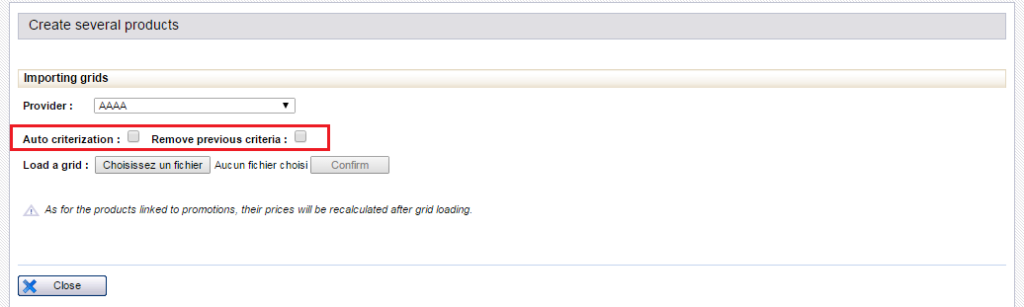
It is now possible to create criteria automatically for products that are being created or edited using the multi-product grid. In the administration tool, the loading pop-up for this grid offers two new options :
The first check box allows you to activate an “Automatic criteria” option. If this box is ticked, columns with names beginning with “CRITERION_” (see new grid template) will be analysed and products given criteria accordingly.
The second check box allows you to “Delete old criteria” for products. If the box is left unticked, the grid will only add new criteria without deleting the old ones. If the box is ticked, the old criteria for products (limited to the criteria set up in the grid) will be deleted and replaced by the new criteria.
Loading pop-up for the multi-product grid with two new options
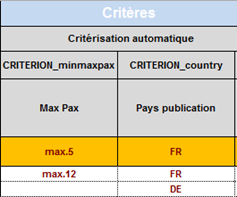
The new template includes new columns dedicated to criteria creation. The codes for the column headings must be in the format: CRITERION_crit1. “Crit1” being a distributor criteria code in the administration tool. Several columns of this type can be added to the grid.
CRegarding cell “values”, you must indicate the criteria value/values for the product criteria you have created.
Here are the possibilities available :
You
can indicate one or several criteria values separated by commas (e.g. val1,
val2).
You
could indicate a “child” criteria value (meaning a child in the
criteria tree diagram) by indicating the file path to follow in the tree
diagram separated by full stops (e.g. val1.val11.val112).
If
the criteria value does not exist in the tree diagram of the administration
tool, it will be created automatically, as well as all the relevant tree
structure.
If
the same product is given different criteria values in the grid and a given “CRITERION_”
column, the product will be given both criteria.
Example of criteria created in the multi-product grid template
Please note that the loading pop-up tells the user the number of criteria that will be automatically created in the grid.
New section: “additional information”
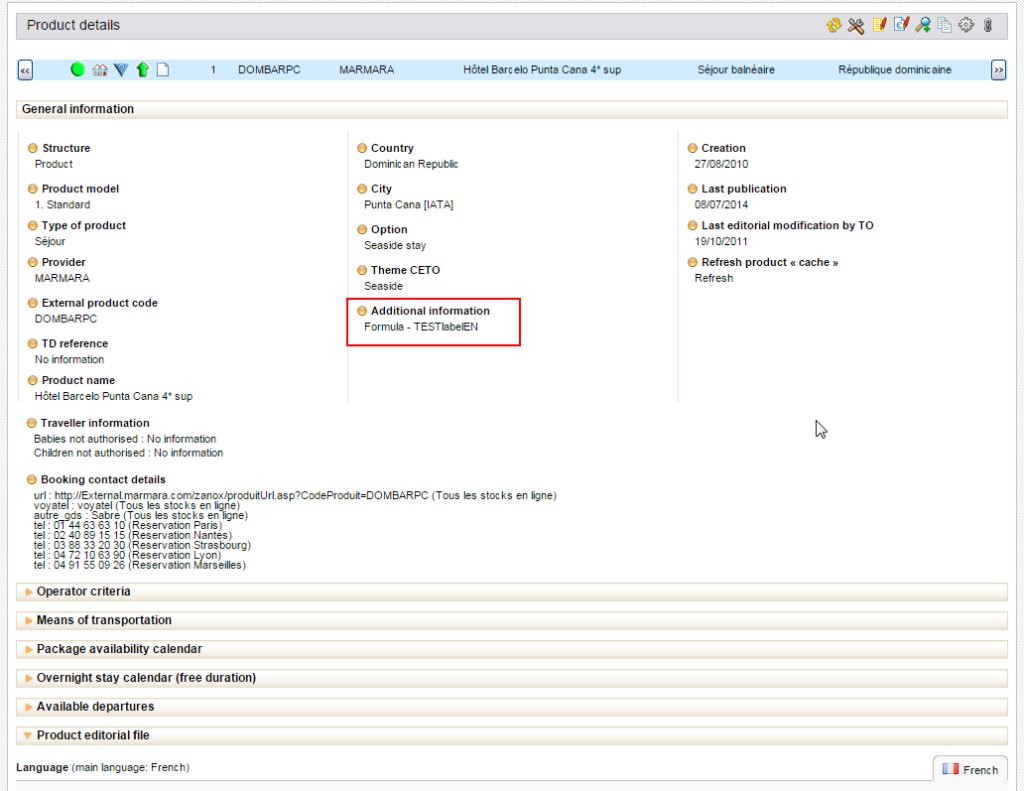
A new section called “additional information” has been added to the package sheets. This section allows you associate a Type/Code/Label list with a package.
The list of “Types” to display can be configured. This additional information can be entered using the multi-product grid or administration tool.
Additional information visible on a package sheet
1/ Use
Unlike the distributor criteria, which are based on a values reference record defined in the “Configuration” section of the administration tool, the codes/labels for additional information are unrestricted. While this information is intended to be displayed or used in a variety of ways, it is not intended to be used as part of the search services.
Additional information is also useful to replace some of the technical information that was previously entered in the package editorial sheet (using an enriched editorial template).
2/ Editing the multi-product girl template
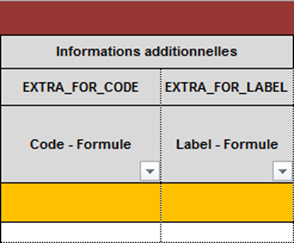
New columns have been added to the multi-product grid so that you can enter the additional information. The column heading corresponds with the type of additional information. There can be as many columns as there are types configured. For each type, a code and a label can be entered. This allows the “additional information” fields (mentioned earlier) to be filled in automatically when creating a package. Please note: similarly to other package technical fields, these fields are only taken into account at the time of package creation.
Example of additional information created in the multi-product grid template
Hotel operator extranet
A hotel operator extranet has been created in the Orchestra platform.
It allows hotel operators to create a supplier account so that they can personally manage their hotels in the system. Access to the extranet is usually through a B2C website with a link that invites hotel operators to register, or using a dedicated email address.
1/ Login
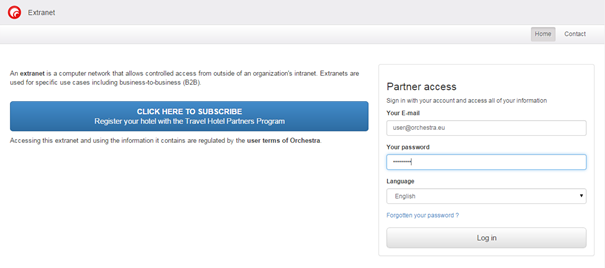
The login page allows people who already have a supplier account to sign in. If this is not the case, there is also a blue button that provides access to the account creation page.
Login page for the hotel operator extranet
2/ Registration
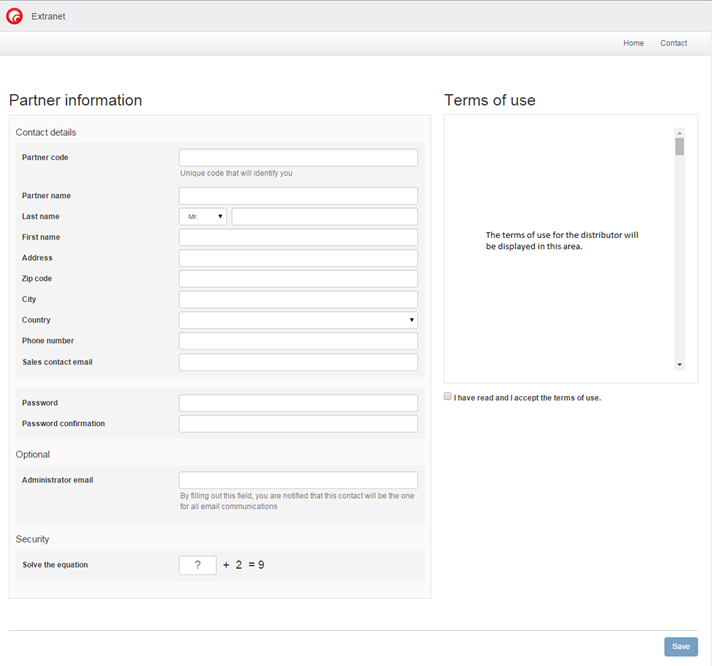
The page to create a supplier account contains a registration form to fill in. The hotel operator must enter their information. Once the form has been filled in and the terms and conditions accepted they will receive an email to confirm their registration.
They will then be able to sign in through the login page and gain access the extranet home page.
Registration page for the hotel operator extranet
3/ Home page
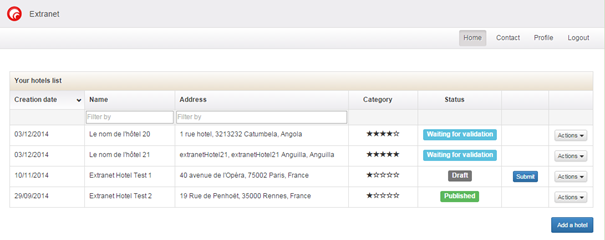
The home page provides a summary of all the hotel operator’s hotels in a table that can be filtered and sorted. If this is their first connection they will only be able to create a new hotel.
Home page for the hotel operator extranet
Each hotel has a status from the following list :
Draft:
This is the initial status when the hotel operator creates a hotel. This status
remains until the hotel operator has submitted their hotel to the distributor
by clicking the “submit” button.
Pending
validation: Once the hotel has been submitted to the distributor it receives
this status. The distributor can then choose whether to validate the hotel or
not.
Refused:
If the distributor does not want to validate the hotel it will receive this
status. The hotel operator can then make changes and submit the hotel again.
Pending
publication: If the distributor has validated the hotel it will receive this
status. The hotel operator can then edit the rooms, rates and stock for this
hotel.
Published:
The final status signifying that the hotel is now visible in the distributor’s
catalogue.
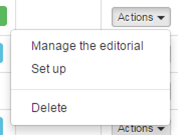
The actions available for a hotel are different depending on its status. The three possible actions for a hotel are :
Edit
the editorial: This allows you to change/complete/correct the general and
editorial information for a hotel.
Configure:
This allows you to manage the rooms, rates, promotions, services and stock for
the hotel.
Delete:
This allows you to delete a hotel.
Actions available for a hotel
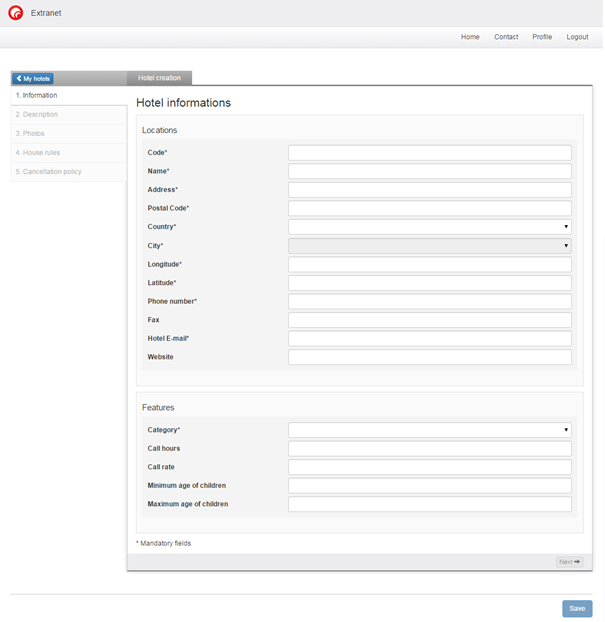
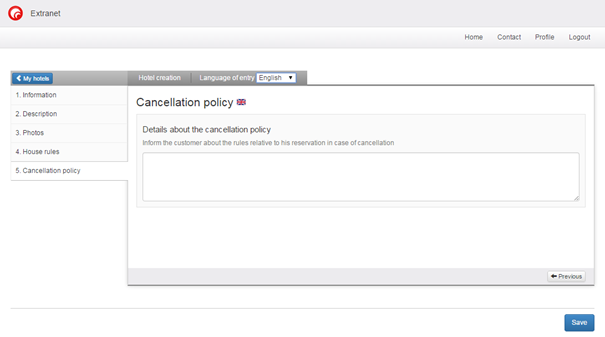
4/ Page for creating/editing a hotel
There a five stages in creating a hotel.
The first stage includes the hotel’s general characteristics. To identify the hotel the operator must choose a unique code. Once the code has been chosen, it cannot be modified. Until this stage has been completed it is impossible to go to the next stage. Once the main information has been entered it is possible to complete the other stages in any order, or even to ignore some stages. Each stage that is entered is automatically saved when the hotel operator passes to the next stage. Consequently, an operator can start entering hotels without being obliged to finish them. They can pick up where they left off later.
Page to create a hotel
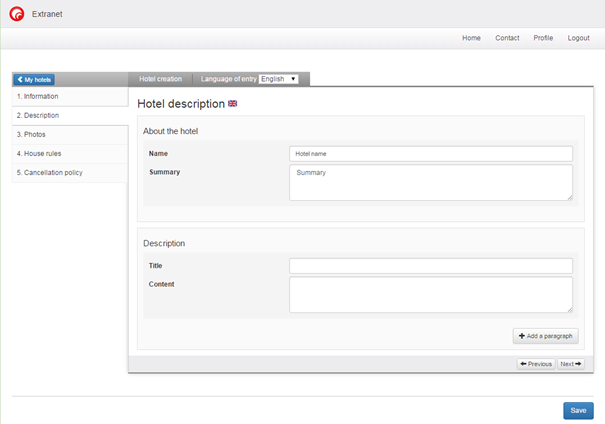
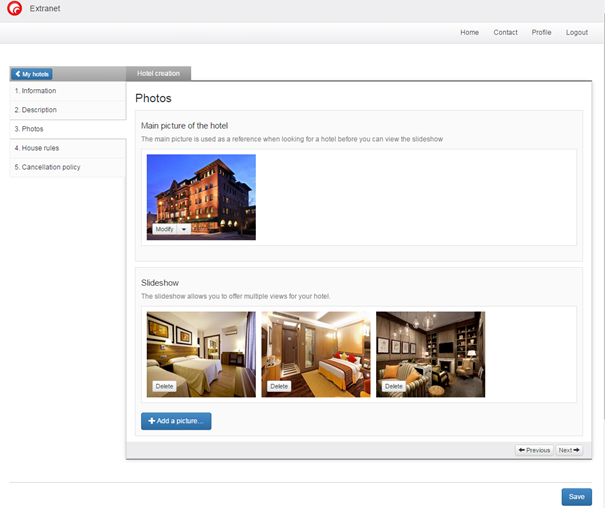
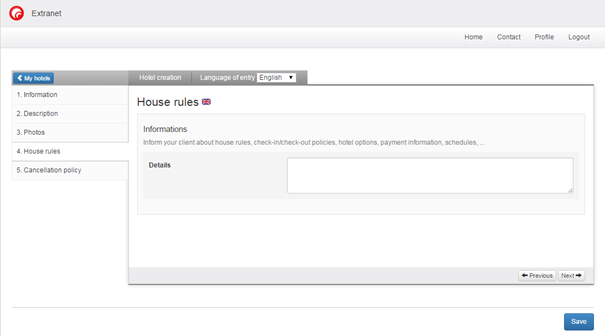
Entering information comprises the following stages :
General hotel description,
Main image and slideshow,
Rules of the establishment,
Cancellation conditions.
Different stages in creating a hotel sheet
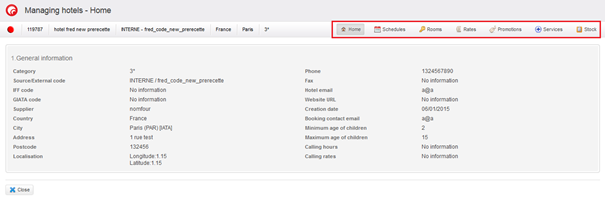
5/ Rates management
From the “Pending publication” status onwards, the hotel operator can access rates management for their hotel. The operator has access to all rates management functions for the hotel and can manage :
Calendars,
Rooms,
Rates,
Services,
Stock,
Promotions.
Access to the rates management function for a hotel
6/ Distributor validation process
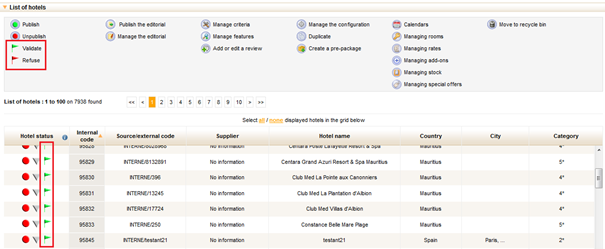
For a hotel operator to sell their hotels through a distributor, the latter must have validated each of the hotels. As we saw earlier, the hotel can be given several statuses which indicate its state of advancement. When the hotel operator decides to submit their hotel, the distributor will then either validate or refuse it. To do this, two new actions are available in the “Hotels” tab of the administration tool :
The
“Validate” icon allows you change the status of a hotel to
“Pending publication”. The hotel has not yet been published by the
distributor but the hotel operator is allowed to enter availability
information.
The
“Refuse” icon tells the hotel operator that the distributor does not
wish to sell the hotel. The hotel operator then has the possibility to revise
their hotel information sheet and submit it again.
Please note that when a hotel has not been submitted yet, the validation status shows a grey icon.
New validation actions for hotels created by hotel operators
New booking process
The ergonomic design of the booking process has been changed. In particular, there have been several changes to the quote stage to optimise the user experience. The optimised process for desktops and tablets is also compatible with mobiles. Specific work for mobiles will be completed in the coming months.
Due to the sensitive nature of changes to this process, the new process will be tested by two pilot distributors before being put into service.
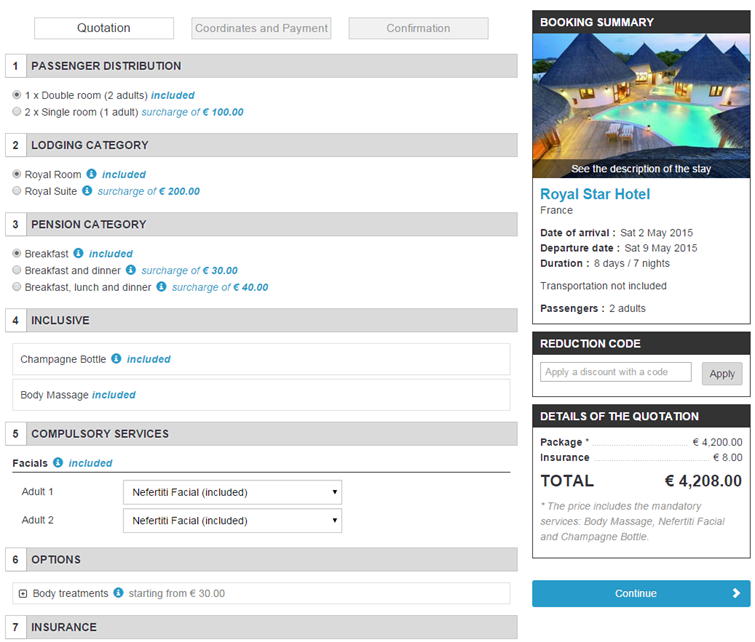
1/ Graphic redesign
The most noticeable change is to the graphic and ergonomic design.
The
different choices offered to the user are now grouped together in numbered
blocks with a clear heading.
Hence, in the example below, blocks 1, 2 and 3 concern choices related to accommodation. If the user decides to change the combination of rooms, blocks 2 and 3 will be automatically updated with the new choices.
The way of displaying the prices of different elements has also been changed. They now appear next to the labels with the information “included”, “supplement” or “reduction”.
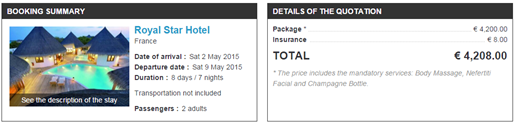
New quote page in the package process
2/ Simplification of the price “recalculation”
Unlike the former booking process, the prices for each element are no longer the price difference based on the user’s choices. For example, if the user chooses 2 single rooms, the “included” information for the double room with “supplement of €100” for the 2 single rooms will remain unchanged.
In addition, the “recalculate”‘ buttons that sometimes appeared during the booking process in the preceding version (when a producer could not get a price for all of the possible choices at once) no longer exist. Now the “recalculation” is automatic if the external producer’s system can handle it. If this is not the case, it is possible to deactivate the choices that require an automatic “recalculation” separately for each producer.
3/ Side bar
Two display modes are now available: with or without the side bar. Hence, the travel summary information can be displayed in various ways depending on the chosen configuration :
In
a side bar (on the left or right)
Above the breadcrumb trail
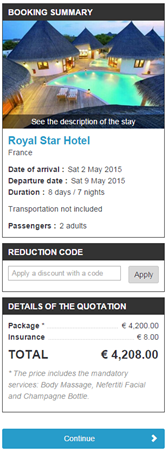
This bar includes the order block, the reduction codes, the quote and the validation buttons all at once. The quote section has been redesigned, in particular, with the addition of an asterisk indicating services included in the stay.
The quote section in this side bar is also floating. In other words, it follows the movement of the scroll box so that it is visible at all times.
Classic display :
Side bar :
4/ Description of services
The room categories, types of board, and various services loaded using the grid can now be associated with rich content (photo and description).
This content must be entered in the “Editorial'” tab of the administration tool by way of the special template.
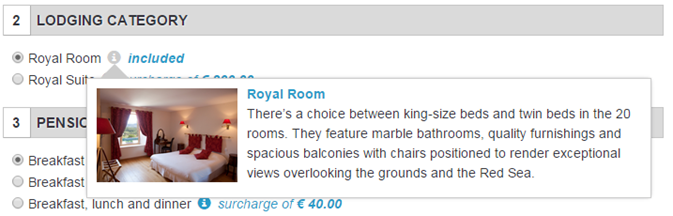
The content is linked with the different services by simply adding the appropriate codes into the two new columns of the price sheets (transversal content code and zone code). These descriptions will then be visible in the form of “hover boxes” at the quote stage by clicking on the « i » blue icon .
Displaying the room category description
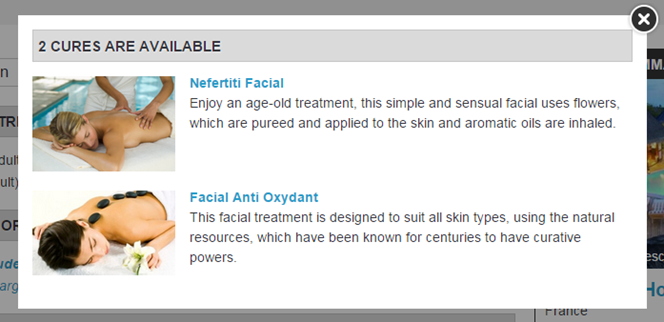
Displaying the description for a group of options
These display modes can be applied to an external producer’s services if they send them using the Orchestra connection system.
5/ New service assigned to a passenger
A new type of service has been introduced. It allows you to assign a service to each user of a service from a scroll-down list, as early as the quote stage.
It could concern options like a spa treatment for example, or any other type of service that can be assigned.
Example of a service that is assigned to a particular passenger
6/ Baggage selection
The selection of baggage has been optimised for the pre-package and dynamic package sales process. This also applies to other “ancillaries” which an increasing number of airlines are offering.
Example of choice of baggage without passenger assignment
Example of choice of baggage with passenger assignment
7/ Cruise display optimisation
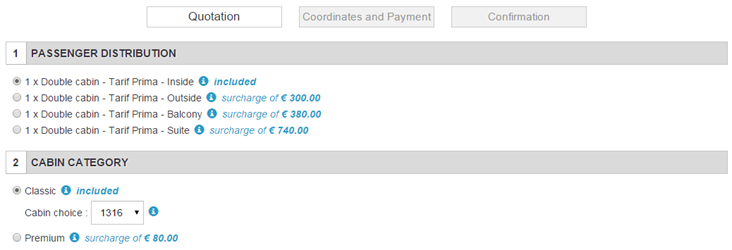
Cruise ship cabins also have a new presentation style with detailed descriptions. Information like the location of the cabin on the ship, or animations showing the cabin interior now open in a pop-in, in the same way as the internal services we mentioned earlier.
In addition, the content labels in the cabin selection scroll-down list have been optimised for ease of reading.
Display of cabins in the new booking process
8/ Compatibility and A/B testing
The new booking process remains compatible with all of the navigators on the market starting from Internet Explorer 8.
Moreover, the new booking process can be used in parallel with the old version for the moment. This allows you to carry out “A/B testing” and adjust the new process before the final switch over.
Multiple methods of payment on the contact details page
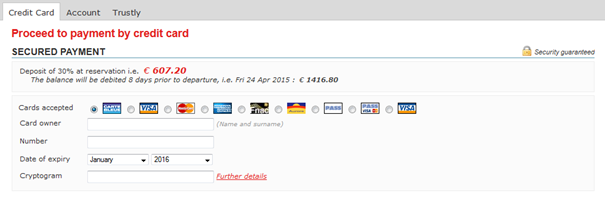
In the contact details page and combined payments page, only a single payment system was offered up until now. A tab system now allows several payment systems to be offered simultaneously, without overloading the page.
This new function is available in both the old and the new booking process.
Display several methods of payment on the contact details page
Dynamic passenger age groups
The age groups are now dynamic for each producer. To make the most of this function, it is important to divide up the passengers in the following way :
Child: 0 to 17 years included
Adult: 18 years and over.
Hence, a 15 year old passenger will be shown as a child all throughout the booking process, but they will be sent to the external producer’s system as an adult if this producer considers that the “child” category stops at 12 years of age.
This function is valid for the entire booking process. For source hotels, the age groups can be different for each hotel, but each passenger “type” that is displayed will remain constant on the results page for all hotels.
Method of payment to suit type of flight
It is now possible to link a method of payment to a type of flight being offered (GDS, Charter or Lowcost). For example, the method of payment “Debit card” will be offered exclusively for the type of flight “GDS”.
Compliance with the Loi Hamon (French insurance law)
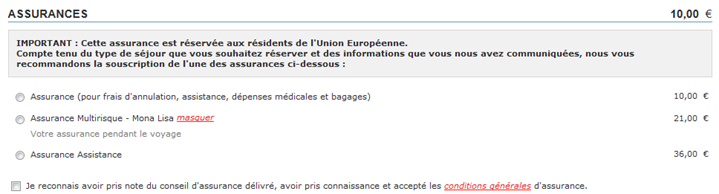
In order to comply with the Loi Hamon, a message and check box can now be configured at the level of the insurance block on the quote page.
Example of message and check box in the insurance block
New producer
VVF is currently being certified on the Orchestra platform.
Improvement of existing producers
1/ RCCL Group
Management of drinks packages
The various drinks packages are now handled for the producers: Royal Caribbean, Croisières de France, Celebrity Cruises and Pullmantur.
Management of new pricing types
New pricing types, in particular, promotional price types, are now handled for the producers: Royal Caribbean, Croisières de France, Celebrity Cruises and Pullmantur.