A new main page presenting the different modules is now available on the platform. It can be accessed via a new URL that provides a unique access point for all modules on the platform.
This page contains a login form similar to other tools.
Once connected, the user can choose the module they wish to access. The number of modules presented depends on the user’s access rights. Clicking on the module allows the user to automatically toggle to the corresponding tool, via SSO.
The next time the user accesses the URL for the main page, the user will be directed to the last module they were connected to, and will not go via the module selection step again. So this page provides several benefits. With this page :
You can
share a unique URL with collaborators, regardless of the module each individual
will use (Administration tool, Back-Office, B2B solution, etc.),
New users
can see a quick overview of the modules they can access,
Users can
quickly reconnect to the last tool they used.
However, you can also configure the settings to view this page each time you access the unique URL. This page then becomes a homepage where users must select the module they wish to use each time they log in.
New home page to choose a tool
Managing access rights in the Editorials tab
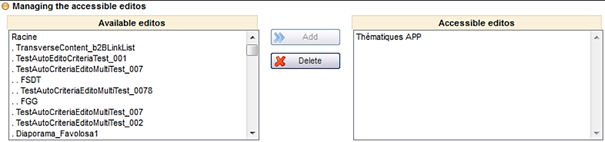
You can now restrict the list of editorials accessible to each user. A new section, accessible via the users’ “Profile” pop-up, enables you to set which editorials are visible. As the list of editorials is structured in the form of a tree diagram, you just need to select the point from which access is given.
A new select box allows you to control which editorials are visible to the user
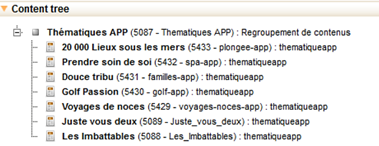
When the user in question connects and clicks on the “Editorials” tab, they will then only be able to access the authorised editorial, as well as all of the tree diagram below the editorial.
Tree diagram visible in the “Editorials” tab
Users’ tree diagram optimisation
The tree diagram has been optimised to improve user navigation, particularly when there is a high number of users.
Managing cancellation conditions
You can now set the cancellation conditions for internal hotels via the hotel management within the administration tool. These cancellation conditions pre-populate the modification section of the Back-Office when the booking is cancelled or when a room at an internal hotel is modified.
To configure these settings, go to the “Tariffs” section in the administration tool. The conditions are then linked to a type of tariff.
Display of the cancellation conditions associated with each tariff
There are 3 types of cancellation policy :
Not provided (default value), which means that the hotel is not managing the cancellation conditions. The reservation process and the Back-Office will behave as before,
Non-refundable, which means that the cancellation will cost the price of the room and any options booked,
Flexible, which allows cancellation fees to be charged depending on the time between the cancellation date and the departure date.
Selecting the type of cancellation conditions when setting the tariff
When “Flexible” conditions are selected, a table will appear so that you can define the cancellation period.
Defining the cancellation period for the flexible cancellation conditions
In the example above, cancellation is free up until 30 days (included) before departure. Between 30 days (excluded) and 5 days (included) before, cancellation fees are 33.3% of the price of the room and any options selected. Finally, less than 5 days before departure, cancellation is non-refundable.
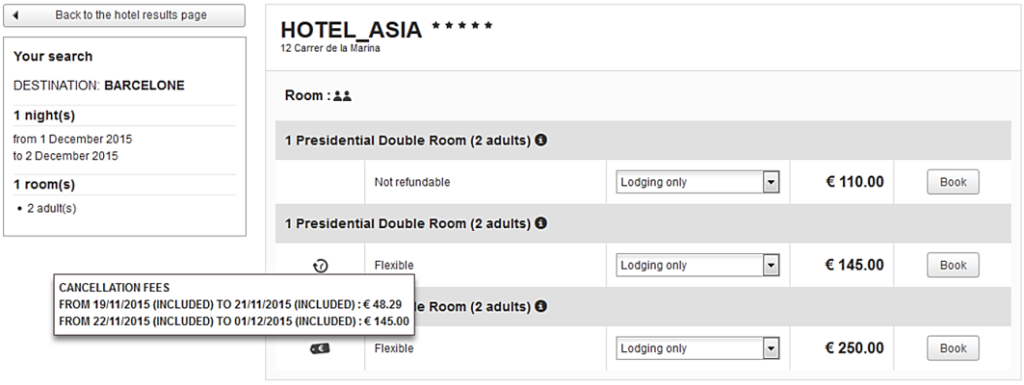
In the hotel booking process, when several tariffs with different cancellation conditions have availability for the same room, they will all appear in the search result.
Example of the same room available with different cancellation conditions
So, in the example above, the presidential room for 2 adults costs :
€110 for the non-refundable
tariff,
€145 for a refundable tariff
subject to conditions,
€250 for another refundable
tariff subject to different conditions.
By moving the cursor over the word “Refundable”, the cancellation fees appear. The cancellation fee summary will also be shown in the confirmation email.
In the Back-Office, if the reserved hotel charges cancellation fees, they will be applied in the case of a booking modification or cancellation in order to pre-populate the corresponding tariff fields.
Automatic population of applicable cancellation fees during the cancellation of a hotel booking
In the example above, the first green line corresponds to the cancellation fees set by the distributor to the hotel service provider (no fees in this case). The second line corresponds to the room cancellation fees. These fees are not compulsory, however, as the agent can still choose to cancel them by clicking on the “Cancel” button, or even change the amounts.
Option to activate/deactivate a tariff
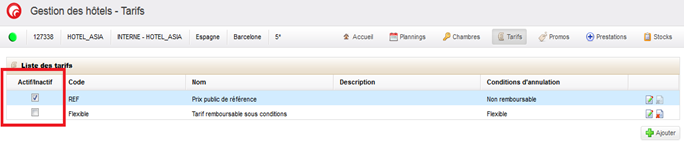
You can now activate or deactivate a tariff when managing internal hotels. This allows you to deactivate a tariff so that it no longer appears in the booking process, then to reactivate it at a later time.
Check box to activate or deactivate a tariff when configuring an internal hotel
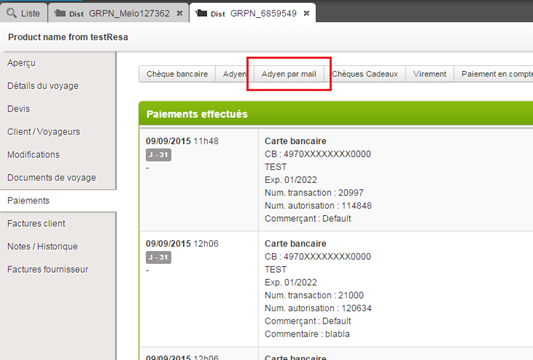
Adyen- Payment by email
A way to pay via email, compatible with the Adyen payment system, has been integrated into the Back-Office. This may be extended to other payment systems in the future.
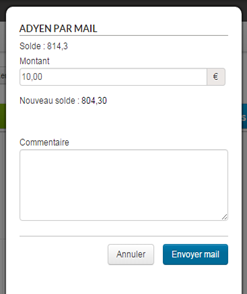
This functionality allows the agent to send an email containing a direct link to a secure payment page. This email can also be sent automatically when an automatic payment has failed.
New method of payment via email with the Adyen system
Pop-up of email allowing secure payment
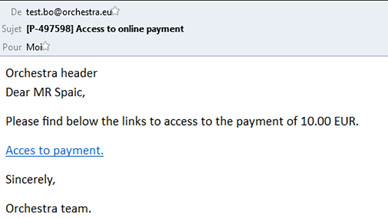
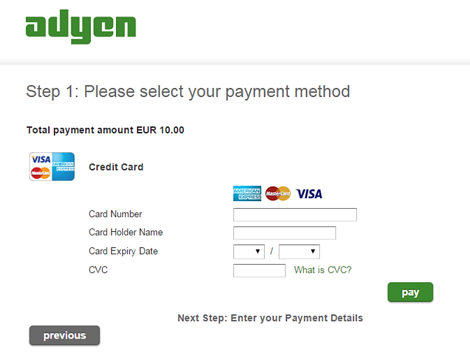
The client then receives an email to enter their bank details directly on the payment page, independently and securely, without having to share them with the agent.
The payment link is valid for a limited period. You can modify the time limit before it expires.
Example of an email allowing secure payment
Access to the Adyen payment form from an email link
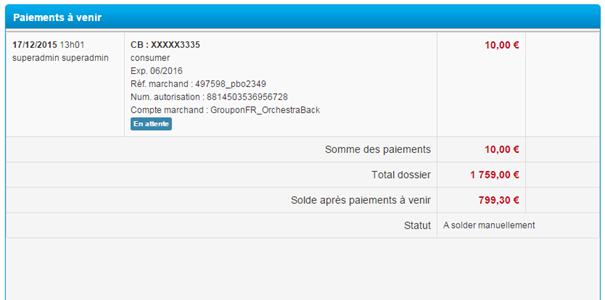
After payment confirmation, it will appear in the list of upcoming payments until it is completely confirmed by Adyen.
Payment visible in the list of upcoming payments in the Back-Office
Improving the contact details page
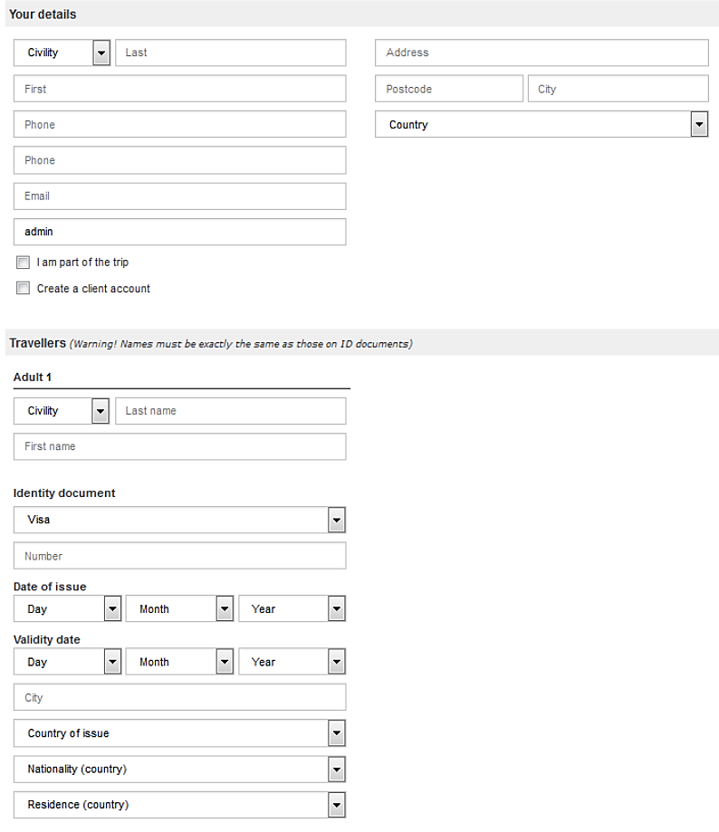
The contact details page has been visually simplified by moving the majority of field names directly into the fields themselves (Place holders).
Improved display of contact details page
The previous display mode is still available via the configuration settings.
Development of rich content on the quote page
Rich content for the different services available on the quote page can now be displayed in two modes :
Tooltip, which is the default
mode,
Pop-up (better for large images
for example).
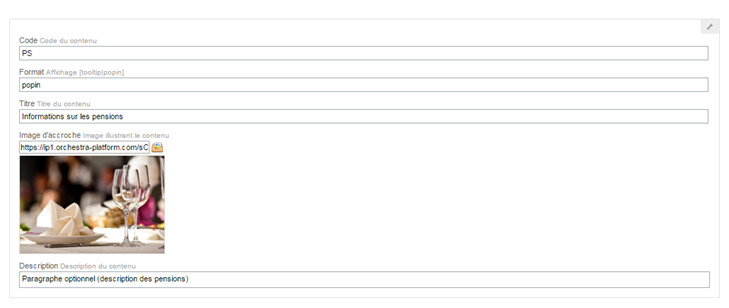
This rich content is still set up via the use of transverse content. The pop-up template now has a new field enabling you to choose the display mode (tooltip or pop-up).
Choice of display formats: tooltip or pop-up
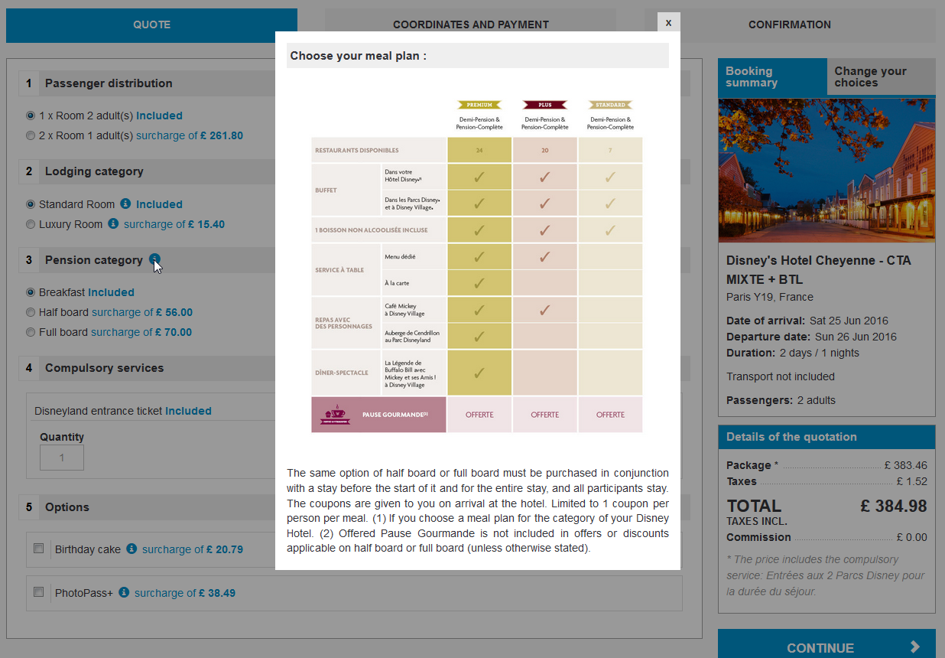
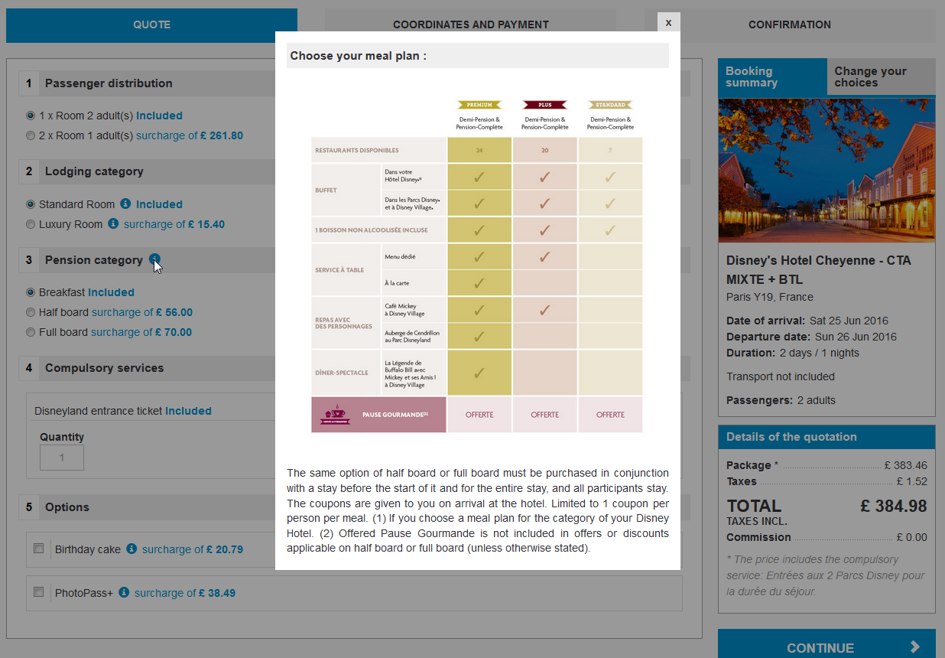
Elsewhere, the “Meal options” block on the quote page now provides a group display of rich content, in cases where all meal options link to the same content.
This allows you to define rich content presenting a table for all meal options available, for example, allowing the client to easily compare them.
A new “pop-up” display mode and group display for meal options
Cancellation mechanism for a multi-source booking
When making a booking containing several different types of service (for example in the case of a package linked to a service, a pre-package, a dynamic package, etc.) and in the event of failure to book one of these services, it’s now possible to cancel the services already booked, for sources that allow this.
Within a booking containing several sources of services, each service is booked sequentially (for example a hotel from source A, then a flight from source B, a transfer from source C, and an excursion from source D). For sources with a technical cancellation function, the relevant services will be automatically cancelled. For other sources, service cancellation must be done manually.
A report is generated and sent by email in the event of a problem in order for the customer to see the booking/cancellation status for each service within the booking.
For example, to continue the previous example, if booking the excursion (source D) fails, and only sources A and C have an automatic cancellation function, the failure report will show the following :
Hotel: cancelled (Source A),
Flight: manual cancellation
required (Source B),
Transfer: cancelled (Source C),
Excursion: not reserved (Source
D).
Example of email sent following the failure of a multi-source booking
New providers
The provider ‘Voyages Internationaux‘ (International Trips) is currently being certified. This provider is characterised by a wide variety of products (tours, holidays, coach trips and cruises). Furthermore, their products offer different pick-up points (local departure points).
The ‘La France du Nord au Sud‘ (France from North to South) product range is currently being certified. This provider offers campsites, properties for rent, and gites from different providers such as Odalys, Pierre & Vacances, etc. These products are booked with these providers via France from North to South.
Provider developments
The Auchan Voyages product range is now available through the latest version of their system.
These two providers now allow for price brochures and meal option information to be collected.
The CroisiEurope product range is now available for various markets (United States, Ireland, China, etc.), and different currencies (Euro, Dollar, Pound Sterling, etc.).
The Disneyland Paris product range is now available through bundled products (duration and offers). They also display information on rooms, meal options, as well as optional services.
information on rooms, meal options, as well as optional services.
Display of different accommodation categories
Display of types of meal options in pop-up mode
Display of optional services
New hotel source
LowCostBeds, which was already available on the Orchestra platform as a package source (LowCostBedsPlus), is now available as a hotel source.