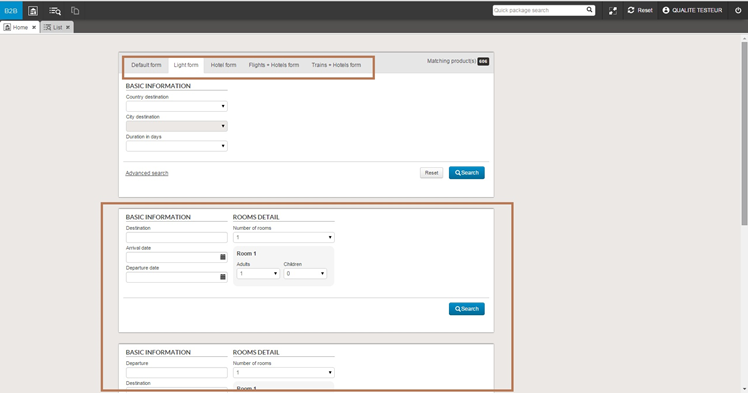
The home page can now handle processes for all of the search engines simultaneously :
Package and Pre-Package
Hotels
Hotels + Transport
Transport
The search engines for different processes can be displayed in separate blocks, or combined in a single block with a tab system.
The multi-process “search engine” widget
Simplified “multi-product” grid
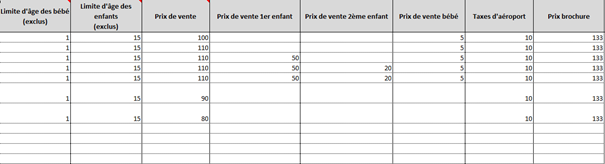
A new “multi-product” grid format is now available. This format contains a lot more columns, and is a simpler alternative to the existing “multi-product” grid. It is loaded in the same place as the current “multi-product” grid.
It contains the following columns :
Product code
Departure town/city code
Trip departure date / Start
date
Number of days
Number of nights
Price type (per passenger or
unit)
Room type (S, D, T, Q)
Category code
Category label
Maximum number of persons
Board code
Infant age limit
Child age limit
Selling price
Selling price 1st child
Selling price 2nd child
Selling price infant
Airport tax
Brochure price
Hotel stock code
Hotel stock quantity
Flight stock code
Flight stock quantity
Unlike the current “multi-product” grid, this does not allow you to create products automatically.
Another feature of this grid is that you do not need to enter the different room combinations for each date. A set list of standard combinations is created automatically:
Single 1 adult
Single 1 adult, 1 child
Double 2 adults
Double 1 adult, 1 child
Double 2 adults, 1 child
Triple 3 adults
Triple 2 adults, 1 child
Quadruple 4 adults
Quadruple 3 adults, 1 child
Quadruple 2 adults, 2 children
For children, only one age bracket can be set.
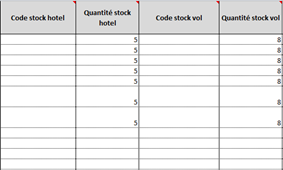
Finally, the stock columns use merged stock, like the current “multi-product” grid. Nevertheless, only one accommodation-type stock and one flight-type stock can be entered.
New, simplified “multi-product” grid template
Management of pre/post-flight transport for internal flights
It is now possible to define pre-flight and post-flight transport in the flight price sheet. As a reminder, this sheet is opened in the “Flights” tab of the administration tool.
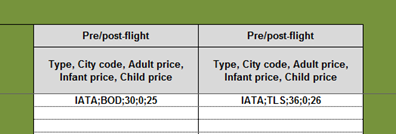
New columns dedicated to this transport can be added at the bottom of the flight price sheet template. You just add as many columns as there are additional legs of the journey to be defined. In each of these columns, the town/city code and the price for each type of passenger has to be provided. Please note that pre-flight transport is associated with post-flight transport by obligation.
New columns for pre/post-flight transport in the flight price sheet
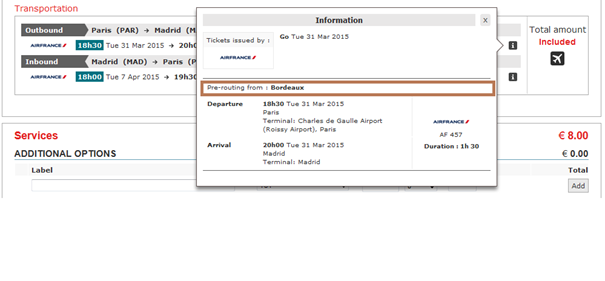
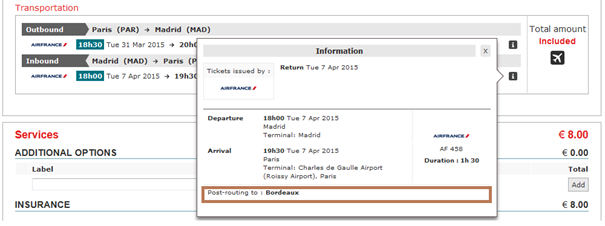
Information about pre/post-flight transport will appear in a flight information “pop-in” i during the booking process.
Pre-flight transport displayed in the booking process
Post-flight transport displayed in the booking process
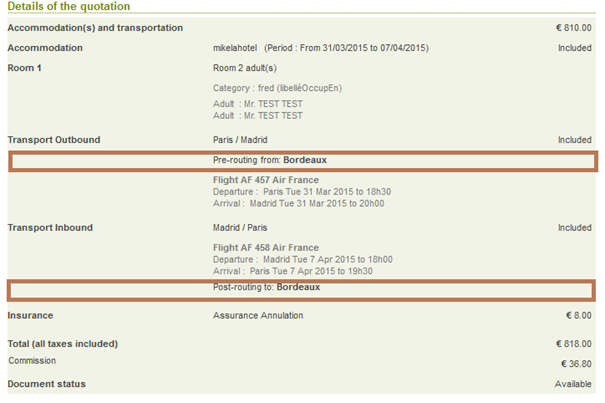
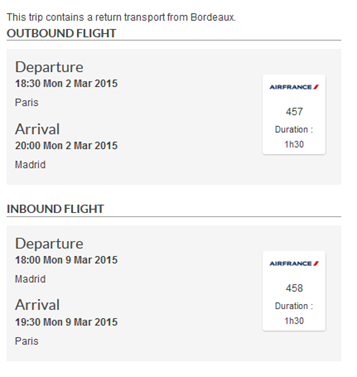
Pre/post-flight transport in the confirmation email
Information about pre/post-flight transport also appears in the producer and distributor folders of Back Office.
Pre/post-flight transport in the Back Office distributor folder
Monitoring pre-package sources
It is now possible to track all of the exchanges that have taken place between the different sources that have been used (e.g. transport source, hotel source etc.) in the pre-package process when creating a price cache, and during booking in Front Office.
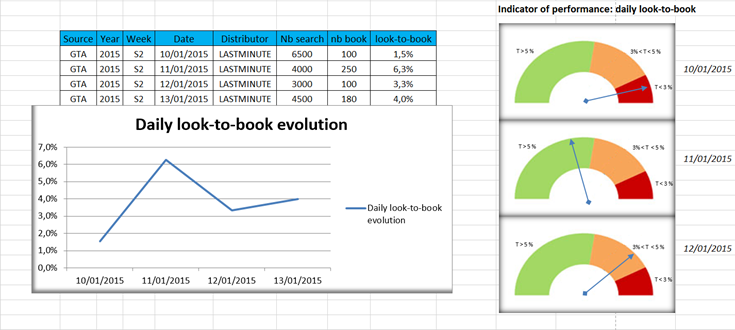
An immediate application of this is the “look-to-book” calculation for each source (a comparison between the number of booking-type transactions and the number of request availability-type transactions). The ratios per source are immediately visible in this manner.
Regular backups can be programmed to extract this data in CSV format. It is then possible to generate Excel charts like the one below :
Example of a chart using this data
Increasing the maximum number of occupants
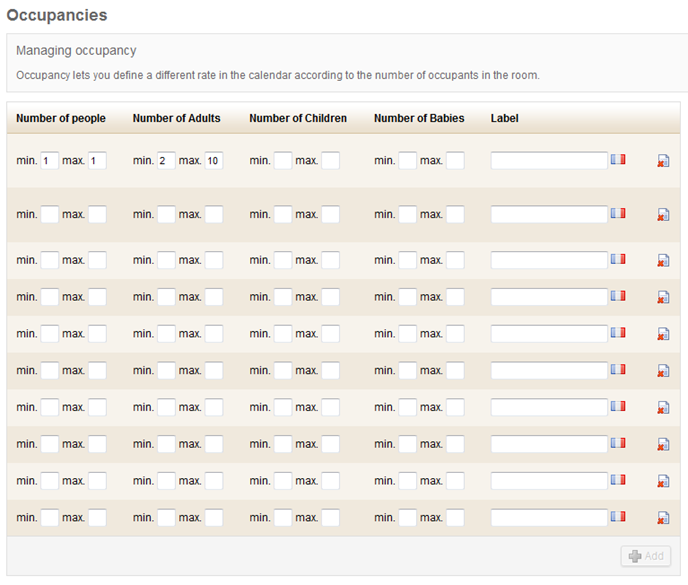
The number of occupants for a hotel room can be set to have a higher number of occupants (10 maximum).
Configuring room occupancy in Hotel management
Evolution of promotions
1/ Setting several periods for a promotion
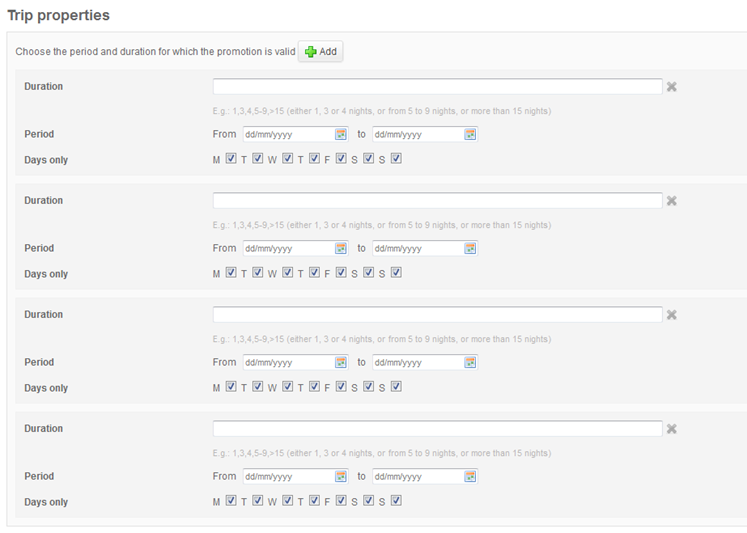
When configuring a hotel promotion you can now set an unlimited number of sales periods in the “Trip properties” area.
Configuring sales periods in Hotel management
2/ Associate a room with a particular promotion
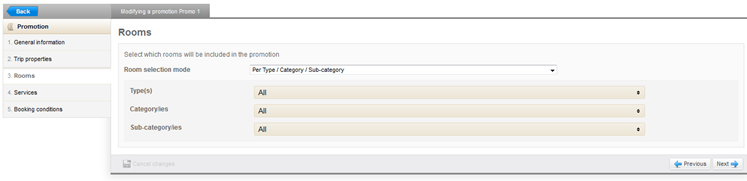
In prior versions, a hotel promotion had to be associated with rooms in an indirect manner, by selecting :
Room type
Room category
Room sub-category
However, it is also possible to directly associate a promotion with a room by selecting rooms in a drop-down menu.
These two selection modes are mutually exclusive. A configuration allows you to activate either one or the other, or both (in this case you will choose which mode to use in the interface).
Association of rooms with promotions by type/category/sub-category
Association of rooms with promotions by room
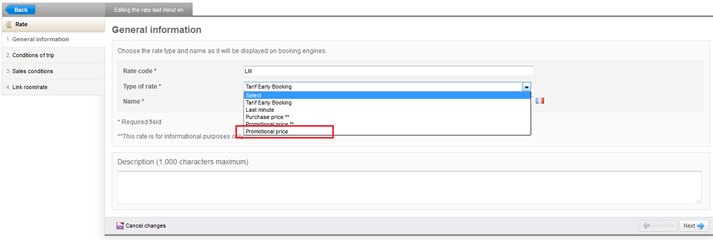
New type of “Promotional price”
A new default price type has been added to price management for internal hotels. This allows you to manage promotional prices and can display an icon for a promotional type.
New type of “Promotional price”
New page for contact details and payments
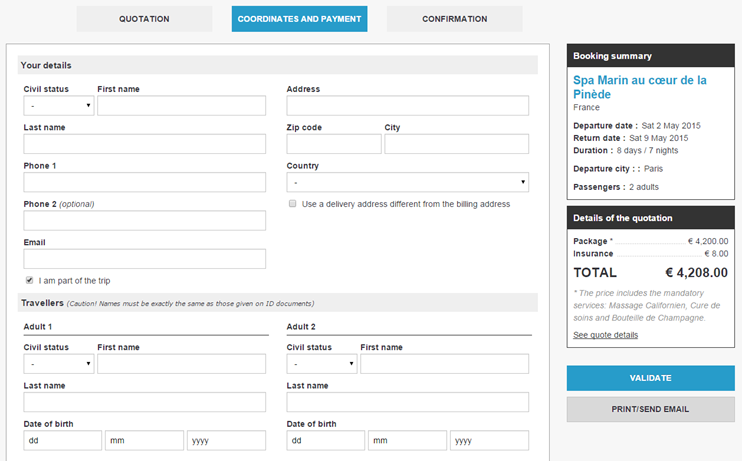
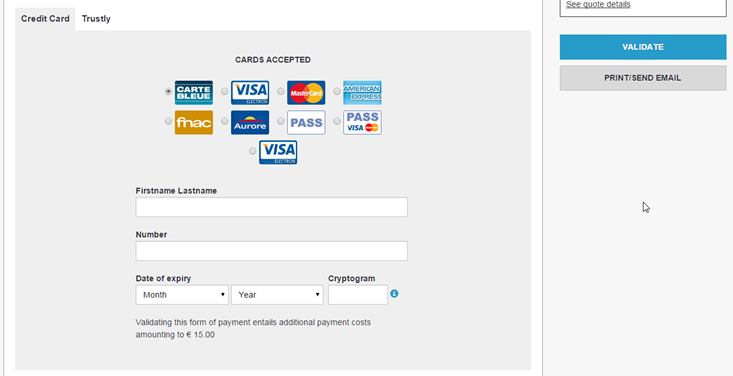
In the new booking process the page for contact details and payments has been redesigned. These two steps can still be configured to have one or two pages in accordance with your requirements.
Contact details in the new booking process
Payment in the new booking process
Possibility to pay commission only
It is now possible to configure the system so that you can choose a payment method for each booking element.
The amount must be paid in
full.
Pay commission only.
For example, it is possible to configure the booking process so that you pay the full cost of services, or just commission for the accommodation part of the trip. The cost of accommodation can then be paid on site at the hotel.
Adyen payment system
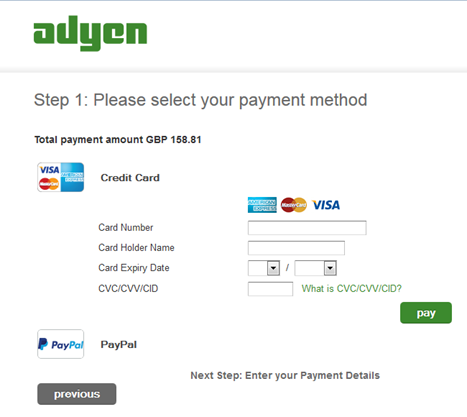
The Adyen payment system has been integrated into the booking process. This payment system operates on a 3-tier model and is compatible with multiple currencies and multiple languages.
Adyen payment page in a 3-tier model
Confirmation email for service providers
Suppliers of internal services can now receive a confirmation email for each booking, the same way internal hotels do.
Advanced anti-fraud management
Up until now, fraud management was restricted to a risk level for each case in the form of three risk levels (low, average and high). Changes have been made to manage fraud in a more precise manner.
A new fraud risk status has been added. This status includes three values :
Non-fraudulent
Suspected
Confirmed
In addition, it is possible to specify the type of fraud :
Name
Email address
Email server
Destination country
Forbidden date
Bank card
Departure city
IP address
It is possible to manage the fraud status in Back Office. For example, a file with fraud “suspected” status, can be changed to “confirmed” fraud after being analysed. The available actions for a file can be restricted based on this fraud status. For example, if a file has a “confirmed” fraud status, you can forbid that changes be made to it.
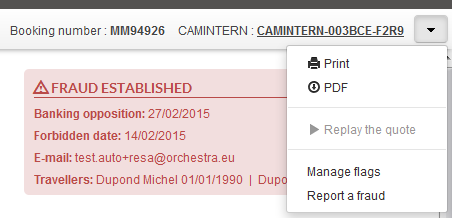
“Signal fraud” command in Back Office
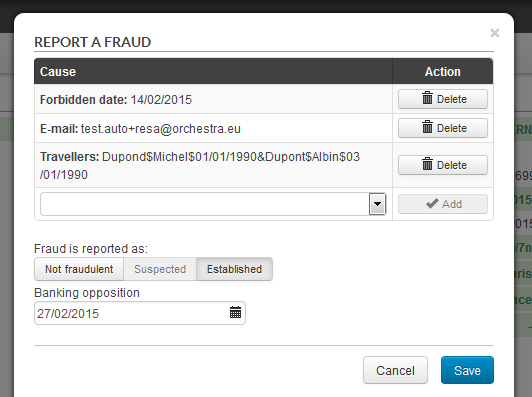
“Signal fraud” pop-in in Back Office
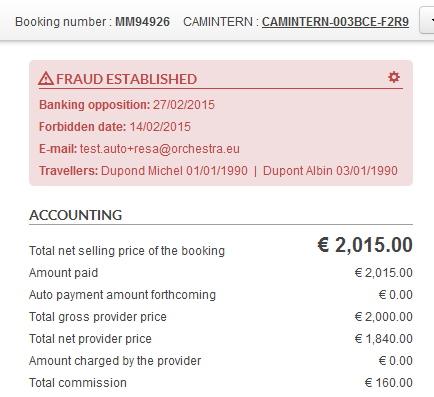
Fraud information preview in the file details
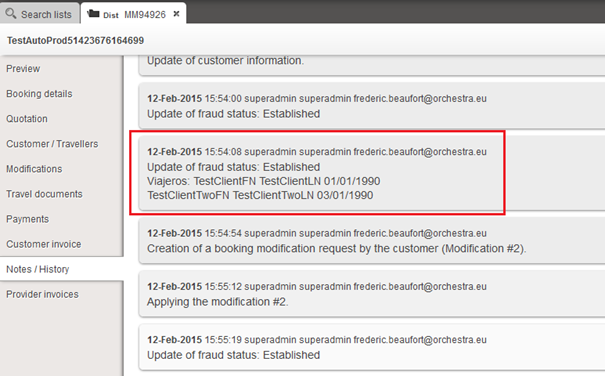
Note signalling a change of fraud status in Back Office
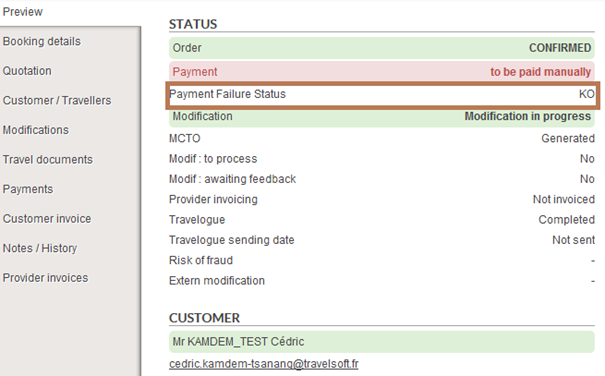
Last payment status
A new payment status has been added. It indicates if the last payment in Back Office was successful. This status helps distinguish “normal” payment failures (payment status = to pay manually) from payment failures generated by an error.
Last payment status in the file details
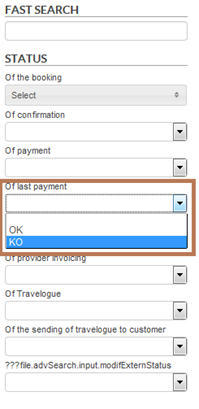
A search field for this status has also been added to help you to find these files.
“Last payment status” search field
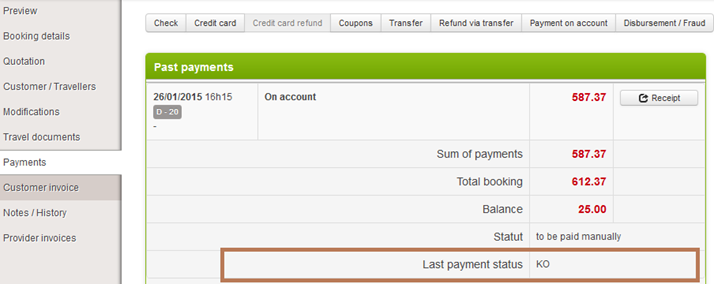
This status is also visible in the “Payment” tab of the file.
“Last payment status” in the “Payment” tab
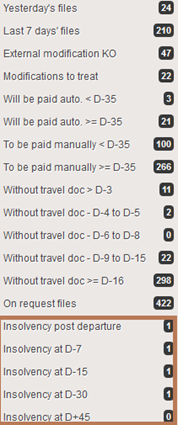
This criteria can be used in search lists in the left-hand side bar. For example, you can identify payment failure issues in the files.
Example of a search list shown by clicking on “Last payment status”
Agency copied into the “proof of payment” email
Currently, the “Proof” button in the payment file section sends a proof of payment by email to the customer. A copy of this email can now be sent to the associated agency.
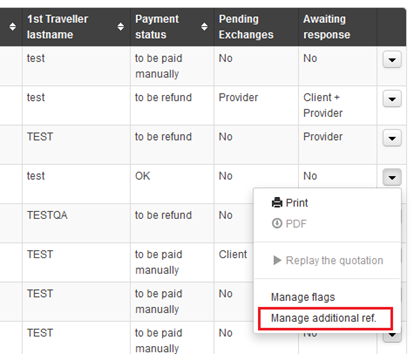
Additional producer reference file
For internal products, the producer can now define their own file number in addition to the file number generated by Orchestra.
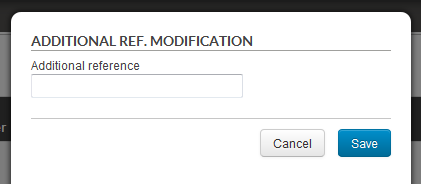
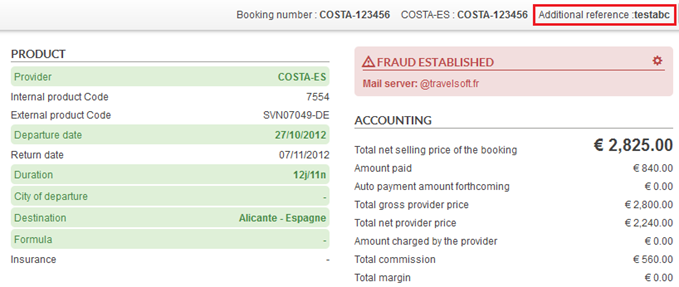
The producer is given access to the distributor’s Back Office so that they can enter their own file reference. It is possible to perform a quick search or an advanced search using this new field. This reference will also be available in exported files, as well as emails sent to suppliers.
“Manage additional reference” command
“Manage additional reference” pop-in
Additional reference shown in the file details
Simulate supplier invoicing
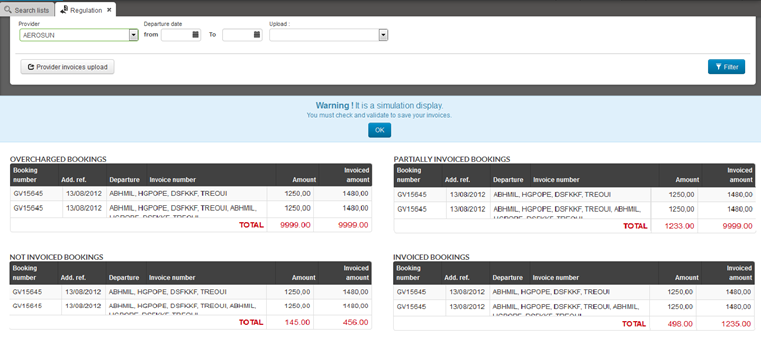
The Orchestra compatibility module now offers a function that allows you to simulate supplier invoicing.
In simulation mode, loading supplier invoices will not immediately affect the corresponding files. This means you can download invoices in an iterative manner in order to correct invoice elements, then make all the files appear in the “Invoiced files” table before applying the changes.
Result of supplier invoicing simulation
New producers
The O2 Voyages product range is available.
The Alliance du Monde product range is now available with Solution+.
The ClubMed product range is currently being certified. Booking will not be available for this producer.