The technical base that manages the different cache systems at the application server level has been completely replaced.
The whole of the platform benefits from this new implementation.
It brings better “scalability” and improved performance.
Displaying price types
When providers no longer have any double rooms available, they can then send prices that are not based on a double room. For compatible providers, we can now import these alternative availabilities and display the price’s exact nature on the product sheet. This feature is also available for catalogues with the appropriate integration.
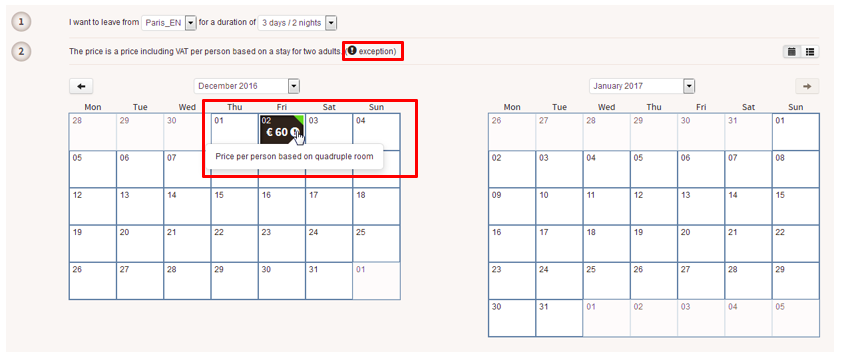
On the B2B solution’s product sheet, when the price type is not standard, a icon will display the price’s exact nature (“Price per person based on a four-person room” or “Price per person based on a single-person room”, for example).
Displaying the nature of prices on the product sheet
Hiding the commission amount
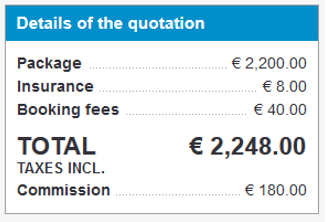
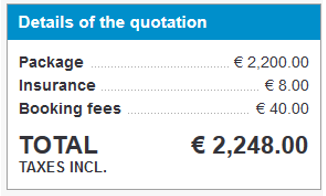
The amount of the commission in the order summary in the reservation process can now be hidden. Simply click on the quote total to hide it.
This is especially useful in the B2B solution so that the travel agent can show their screen to their customer without revealing this information.
Hide the commission by clicking on “Total (incl. tax)”
New hotel stocks
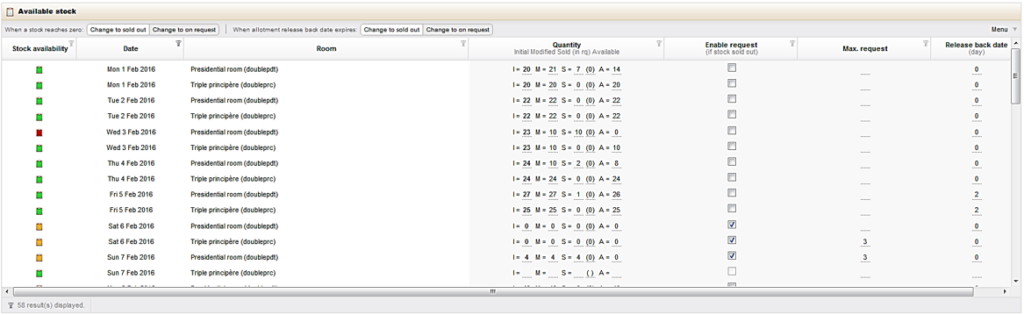
The internal hotel stock management interface has been made consistent with the package stock management interface. This way, in addition to information on the quantity and limit, a stock now has the following information :
Initial quantity (I): the initial quantity of stock before opening for sale on this date. This value is not supposed to be modified afterwards (although the administration tool does allow for it to be modified to correct data entry errors)
Modified quantity (M): the current quantity of stock. This quantity is equal to the initial quantity before the sale opens, but can later be increased or decreased
Quantity of stock sold (V): the quantity of stock sold for this date. This value is 0 before opening for sale, and then incremented at each reservation when its status is confirmed or on request
Quantity of stock sold on request (Rq): the quantity of stock sold on request for this date. Thus, the quantity of stock sold as confirmed is equal to V – Rq
Quantity available (D): the quantity of stock currently available. This value is calculated dynamically according to the following formula: D = M – (V – Rq)
On request authorised: check box for choosing if you would like to continue to sell the requested date if stock is 0
Maximum on request: maximum number of rooms that can be sold on request. If the field is empty, there is no limit to on request sales. This is only useful if the “On request authorised” check box is ticked.
Also, at the top of the stocks table, you can also choose for any given hote :
What happens when stocks reach 0
(Either becomes sold or on request),
What happens when a stock’s
release back date is reached (Either becomes sold or on request),
Before, these two notions were joined, but now they can be managed independently.
New internal hotel stock management
Managing media library access rights in the “Editorials” tab
In the same way as for the media library in the “Product” tab, you can now limit the list of directories of the “Editorials” tab.
The “Administration of directories accessible in the media library” section that is available in the users’ “Profile” pop-up window now distinguishes “Products” and “Editorials” directories with a prefix.
Managing media library access rights for the “Products” and “Editorials” tabs
Modifying packages in bulk regulation
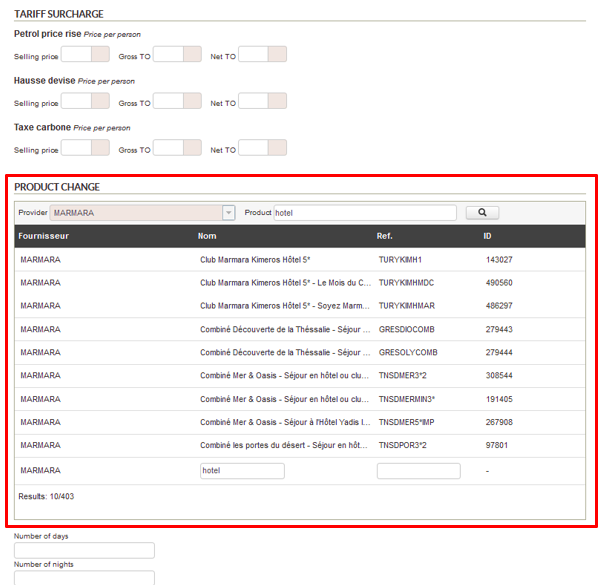
The “Regulation” section in the Back Office now allows you to bulk modify references for packages associated with files. For this, select the files that came from the same reservation process and the same supplier, then click on “Modify”.
Modifying files in the “Regulation” section in the Back Office
A new field then allows you to select an alternative package. This change will apply to all of the files selected in the previous step.
Changing the package in the “Regulation” section in the Back Office
Sending invoices during refunds
In the same way as for payments, you can now send the customer their invoice after a refund.
Improving search results pages
The Back Office’s search forms now display the number of files that match the selected search criteria before confirming the search.
Also, once the search has been confirmed, the page will automatically be placed at the first files found.
Loading multi-supplier invoices
Until now, only the main file in a multi-source file allowed for supplier invoices to be loaded.
You can now load invoices for each of the suppliers involved in a multi-supplier file.
This change leads to several functional modifications in the “Accounting” module. In general, all forms can now filter on the type of service that you’re searching for.
Choosing the type of service and supplier in the different forms
The list of suppliers is automatically updated according to the type.
1/ Uploading invoices
In the same way, the invoice upload pop-in window allows you to choose the type of service and supplier for which you wish to upload the invoice.
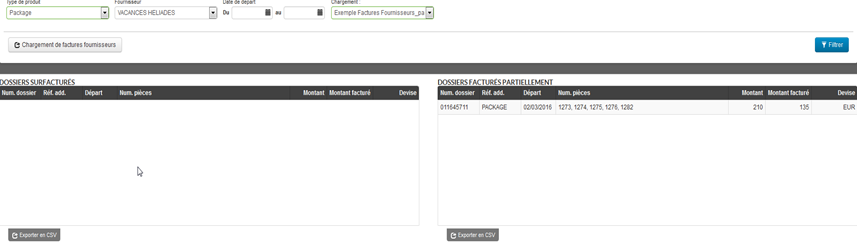
The results of invoice uploads is now displayed by supplier since the invoice status is no longer applicable to the whole multi-supplier file but applies to each supplier (billed/over-billed/not billed/partially billed).
Displaying invoices previously uploaded for the selected supplier
2/ Search lists
As for the main file, there are now lists that allow you to search for sub-files of a particular status. You can now define a list that shows all of the sub-files with the “unpaid” status, for example.
Search lists for files
3/ “Supplier invoices” section
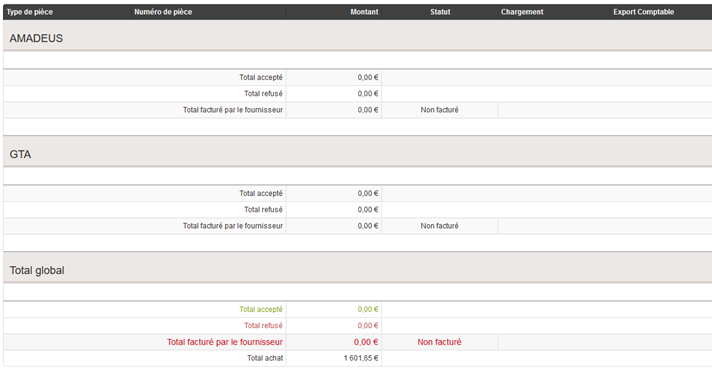
The “Supplier invoices” section has been changed slightly to display the invoices uploaded for each of the main file’s suppliers (in the case of a pre-package, for example). Mono-supplier files are unchanged.
Displaying invoice details by supplier in a multi-supplier file
4/ Additional references
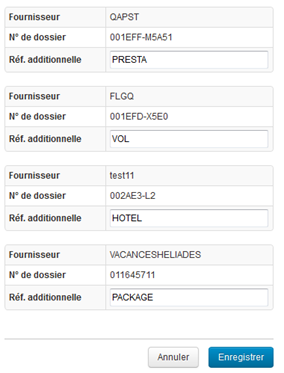
The notion of additional references has been modified to correctly manage multi-supplier files: you can now define an additional reference per supplier file.
Entering additional references per file for each supplier
Integrating the PayZen payment system
The PayZen paymentsystem is now available on the platform.
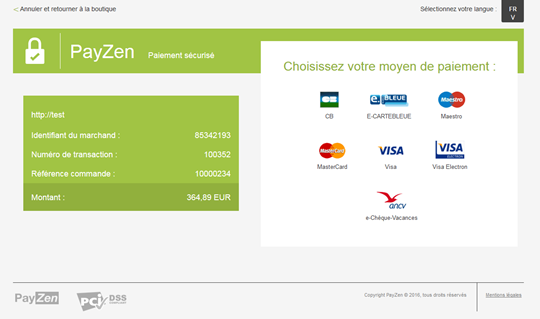
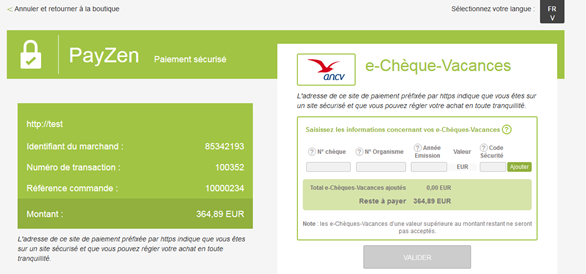
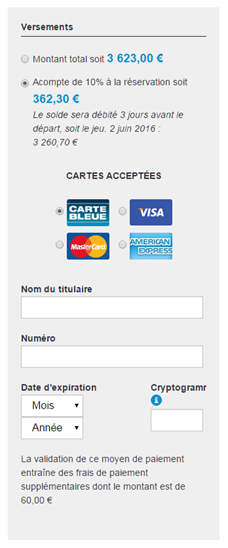
The payment is made in “3-tier” mode in the booking process. Payments can be made by credit or debit card, or by e-Chèque-Vacances.
Choosing the payment method during a 3-tier payment
Entry interface for an e-Chèque-Vacances payment
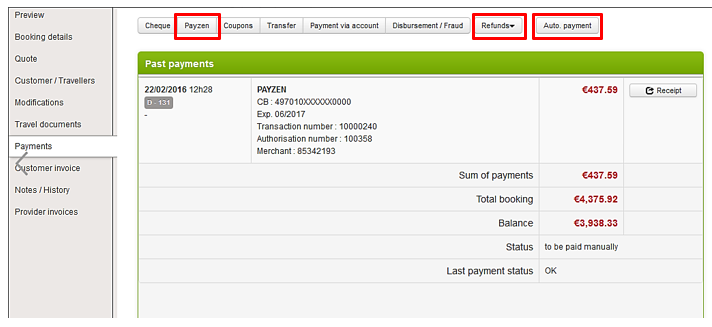
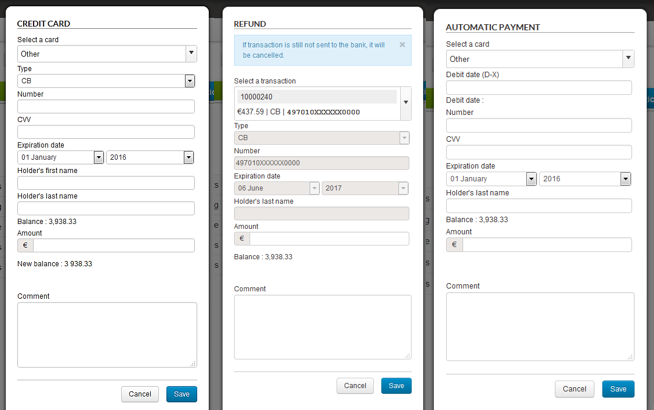
The PayZen payment system has been completely integrated into the Back Office. Payments are made in “server/server” mode and by bank card only. Here, it is possible to :
View the payments made
Create a manual payment based
on an alias or with a new card
Refund or cancel a payment if
it has not yet been processed by the bank
Create an automatic payment
based on an alias or with a new card
Viewing payments made with PayZen
Different payment forms using PayZen:
Different payment forms that use PayZen
Paybox – 3D Secure mode can be activated depending on the departure date
You can now activate 3DSecure mode depending on the number of days between the booking date and the departure date for the Paybox payment system.
Updates to the booking process for Hotels, Transport, and Dynamic packages
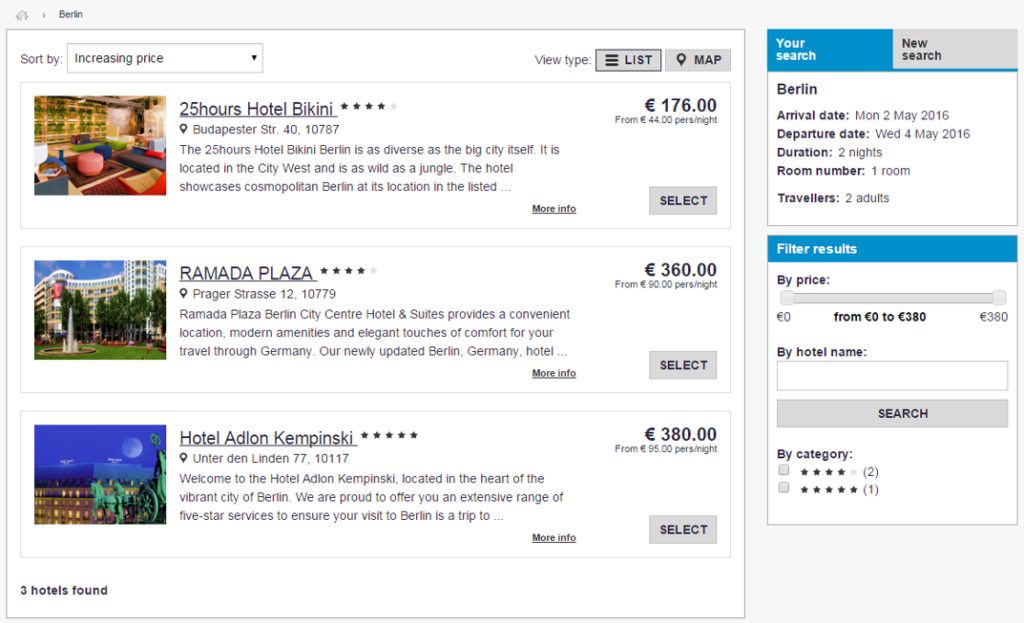
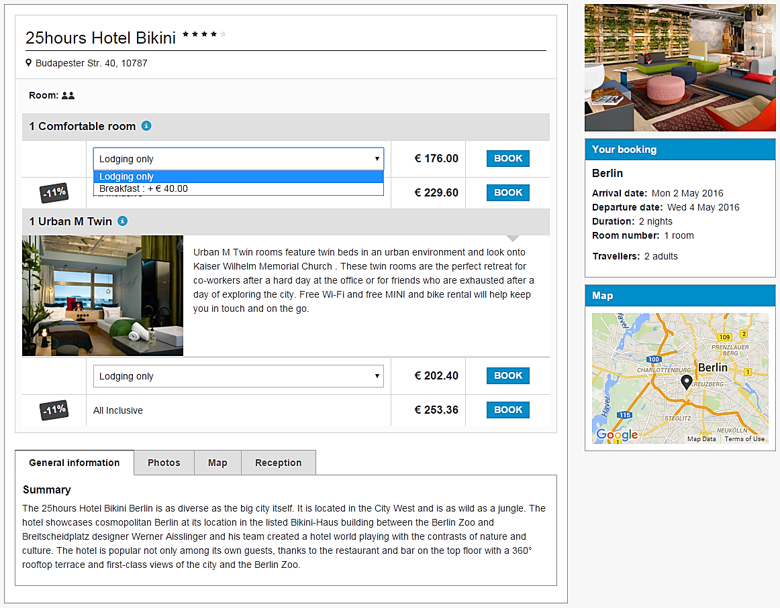
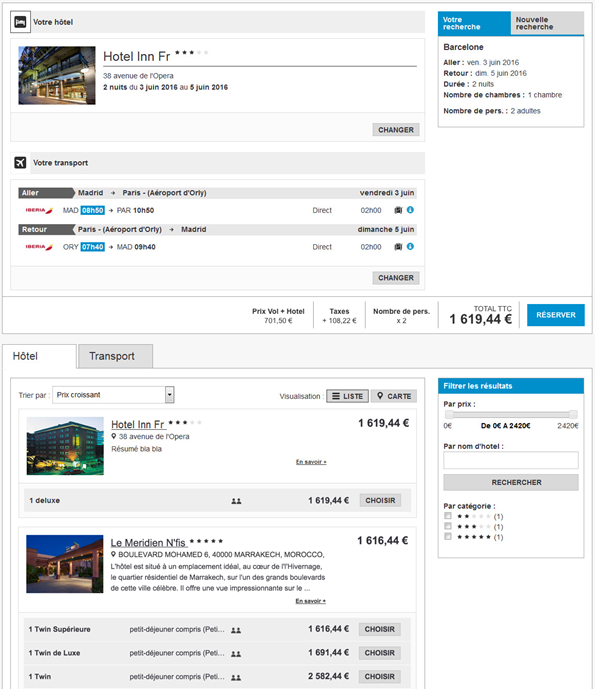
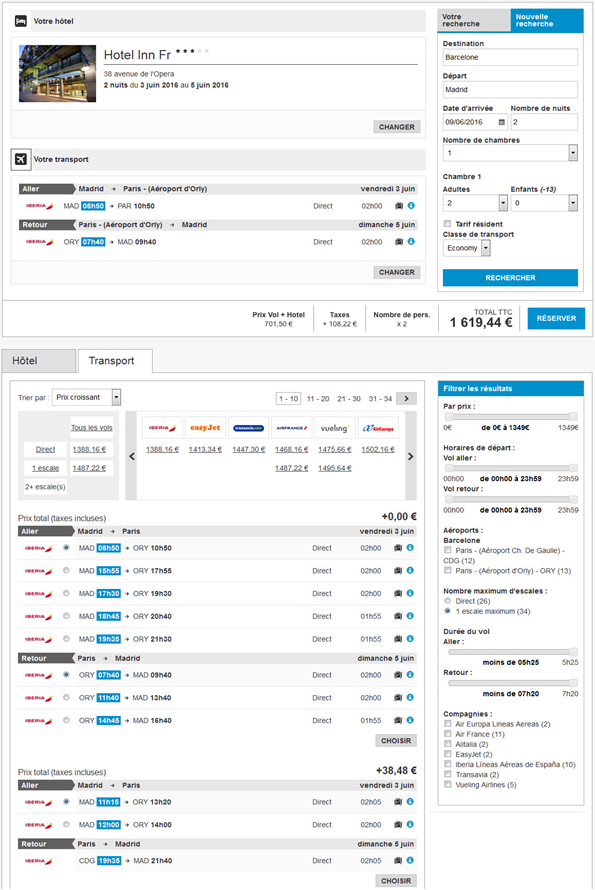
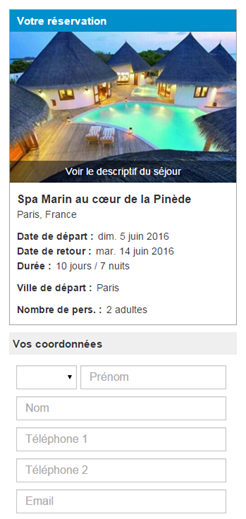
The booking processes for Hotels, Transport, and Dynamic packages have been redone to make them more consistent with package bookings.
1/ Hotel booking process
Search results in the hotel reservation process
Selecting rooms on the hotel information sheet
Details/payments in the hotel reservation process
2/ Transport booking process
Search results in the transport reservation process
Quote page in the transport reservation process
3/ Dynamic packages booking process
Selecting a hotel in the dynamic packages booking process
Selecting a flight in the dynamic packages booking process
Changes to the package booking process for mobiles
The package booking process has been adapted to mobile devices.
A specific theme has improved its compatibility on these devices. In this case, the side bar has been removed from the display: the order summary is shown at the top of the page and the quote at the bottom.
Quote page of the package booking process on mobile :
Quote page on mobile devices for the package booking process
Contact and payment page of the package booking process on mobile :
Details and payments page on mobile devices for the package booking process
New dynamic package/flight booking process : NDC “New Distribution Capability”
A new dynamic single-carrier package/flight booking process has been developed with APG. It is based on the new NDC “New Distribution Capability” standard.
This standard has been developed by the IATA and numerous pilot programmes have been launched around the world, including APG’s programme with Orchestra and the airline Heli Air Monaco.
The main goal of this standard is to specify the distribution mechanisms that allow airlines to sell more than just plane tickets. This way, different “ancillaries” (additional services related to or other than transport) can be offered in addition to tickets at the time of booking, such as :
In-flight meals
Additional luggage
Lounge access
Choice of seat
Transfers related to the flight
Hotels
While optimised for single-carrier sites, these developments can be adapted to our multi-carrier flight process.
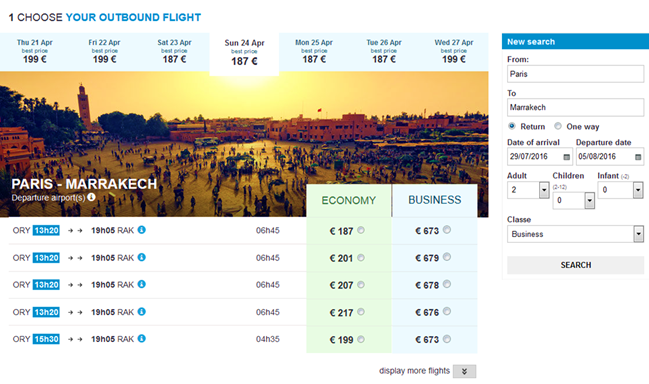
1/ Flexible search results
Flight search results are displayed in two main zones: choice of outbound flight, then choice of return. Departure and return dates can be changed easily thank to the flexible date banners above each zone.
When the lowest price is known, it is displayed on each of these alternative dates. Additionally, you can see availabilities and prices for different transport classes at a glance.
Displaying outbound and return zones and the different date and class alternatives
2/ Highighting “ancillaries”
One of the goals of this new booking process is to highlight the different “ancillaries” offered by the carriers most effectively, as well as flight characteristics (plane model, transport class, departure airport, destination city, etc.).
This new sales process can also show rich descriptive content for these services and flight characteristics. In the screen capture below, you can see the description of the aeroplane used for the flight, the transport class, and the various on-board services (depending on the aeroplane model and transport class, for example).
Rich content display that can describe the aeroplane used for the flight as well as the different “ancillaries”
3/ Entering rich and personalised content
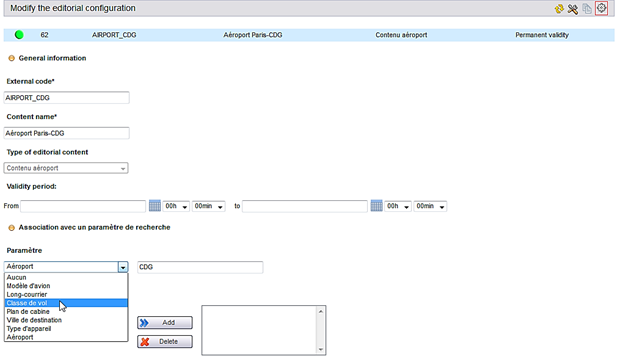
The “Editorials” tab in the administration tool now allows you to associate transversal content to service characteristics that come from external sources during real-time searches. With the appropriate front end integration, it is possible to dynamically display transversal content according to these characteristics, for example associate content with a model of aeroplane, a departure airport, etc.
Association criteria is entered in a new section in the transversal content editor pop-up window.
Entering criteria to associate content with service characteristics
Displaying rich content associated with a flight’s departure airport
Provider developments
Calculating the Vacanciel brochure price has been reworked to improve quality of information.
It is now possible to book the new Costa price types :
Basic
Comfort advanced / Deluxe
Comfort
Last minutes (already
available)
Thalasso n°1 can now group its products by category.
Booking Transat’s “Wide Search” products has been modified to optimise accommodation combination offers.